How to Build a Portfolio Website with Framer (Step by Step)
To build a portfolio website with Framer, sign up for a free account, start from a portfolio template or a blank canvas, and create four pages: Home, Work, About, and Contact. Add your projects to the Framer CMS so one case study template generates every project page. Check the tablet and phone breakpoints, fill in the SEO settings, and publish. It is free on a Framer subdomain. A custom domain needs the Basic plan.
That is the whole map. Here is how to build a portfolio website with Framer step by step, with the exact panel to open at each stage, the mistakes I keep seeing, and what it costs.
Why use Framer for a portfolio website
Framer is a no-code website builder with a canvas that behaves a lot like Figma. What you see is what ships. No developer handoff, no theme fighting you.
For a portfolio, that matters because your site is the first piece of work a client or hiring manager judges. A template that looks like everyone else's is a quiet point against you. Hosting, SSL, sitemap, and CMS are included, so case studies are structured content instead of ten hand-built pages.
Where Framer is the wrong tool: sites with thousands of pages, anything with a shopping cart, or a site five people edit at once. If you are asking how to build a portfolio website with Framer for a handful of case studies, it is the best fit I know.
What you need before you start
Gather this first. Building goes twice as fast when you are not hunting for files mid-layout.
- Three to six projects. Cover image, a few supporting images, and a one-paragraph story: the problem, what you did, what happened.
- A short bio in the first person, one photo you actually like, one way to contact you.
- Optional: a Figma file, a domain name, a logo.
- Time: a template build takes an afternoon. From scratch, a weekend.
Step 1: Create a Framer account and pick a template or start from scratch
Sign up and create a project
Go to framer.com and sign up. No card needed. Click New Project and you get two routes: a blank project or a template.
A blank project opens with Framer's AI Agent panel, which can generate a starting structure from a description. Treat the output as a wireframe, not a finished site.
Framer portfolio template or blank canvas?
Here is the one-minute rule.
Pick a Framer portfolio template if you want to be live this week, or you have never built a website before. Open the Marketplace, filter by Portfolio, preview three. Choose by structure, not colour. You will change the colour anyway.
Start from a blank canvas if your layout and interaction choices are part of what you are selling, or the site already exists in Figma.
Either way, you can make a portfolio website that does not look like a template once you swap fonts, spacing, and imagery. Check the licence on paid templates.
Step 2: Plan your portfolio structure (Home, Work, About, Contact)
Open the Pages panel. You need four static pages and one CMS page. Each has one job.
- Home: make them want to see the work. Name, what you do, who for, six featured projects, one call to action.
- Work: the full grid, optionally filtered by category.
- Project page (CMS template): one case study page, built once, generated for every project.
- About: who you are, first person, with a photo and the same call to action.
- Contact: a form or an email link, plus the two social profiles that matter.
An example portfolio structure that works
For a product designer with five projects:
- Home: hero, three featured projects, short bio, "Available for projects" button.
- Work: five cards, filter chips for Product and Brand.
- Project template: cover, overview line, problem, process, outcome, next project link.
- About: 150 words, tools, a photo that is not a headshot.
- Contact: email link and a booking embed.
Build the Home page last. You cannot summarise what does not exist yet.
Step 3: Design the layout and customize the template
Framer layouts are frames and stacks. A stack lays out its children in a row or column with spacing you control. If you know Auto Layout in Figma, you know stacks.
Before touching a section, set your design system. One or two fonts. A neutral base and one accent colour. A maximum content width around 1200 pixels so nothing stretches across a 32-inch monitor. Save these as text and colour styles so you change them once.
Then customise. Replace every placeholder image and line of text. Half-finished templates are the most common thing I see on new portfolios, and clients notice before you do.
Personal branding on a portfolio is simple. Write the way you talk, use a photo where you look like yourself, and pick one distinctive detail to use everywhere. That is a brand.
Step 4: Add case studies using the Framer CMS
This is the step people skip when learning how to build a portfolio website with Framer, then regret when they add project seven by duplicating a page.
Create the Projects collection
Open the CMS panel and create a collection called Projects with these fields:
| Field | Type | Why |
|---|---|---|
| Title | Text | Project name and page title |
| Slug | Slug | Auto-generated; keep it short |
| Cover | Image | Card thumbnail and social preview |
| Gallery | Gallery | Supporting images |
| Client, Year, Role | Text | One line each |
| Summary | Text | One sentence for the card and meta description |
| Body | Formatted text | The case study |
| Live link | Link | Optional |
| Featured | Toggle | Controls what shows on Home |
| Category | Option | For the Work page filter |
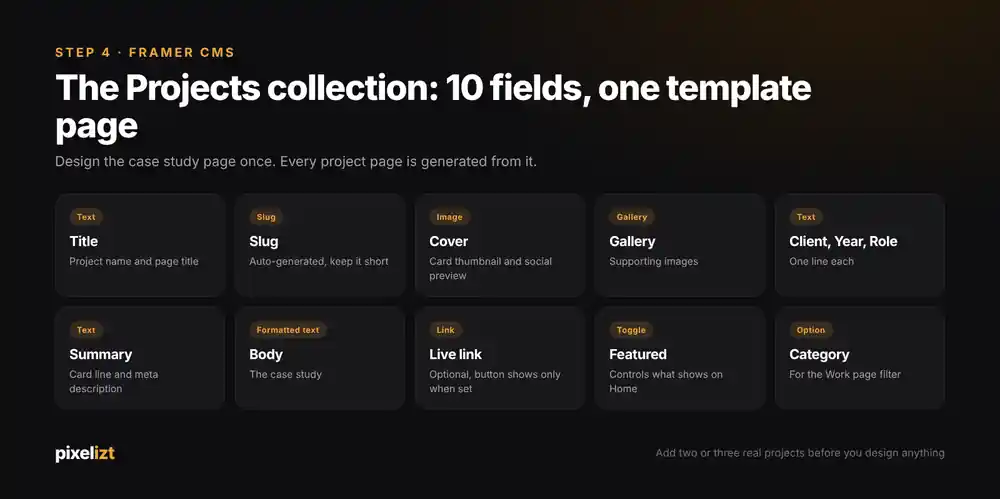
Add two or three real projects before you design anything. Real titles and images expose layout problems that placeholders hide.
Build one case study page
Framer creates a CMS page for the collection automatically. Design it once, in this order: cover, one-line overview with client, year and role, the problem, the process with images, the outcome, a link to the next project.
For the optional live link button, select it, set its visibility to a variable, pick the Live link field, and set the condition to "is set". The button appears only when the field is filled.
Connect the Work grid
On the Work page, insert a Collection List, bind it to Projects, design one card, and link it to the project page. Every card inherits the design. On Home, add another Collection List filtered to Featured and limited to three or six items.
Step 5: Make it responsive for mobile and tablet
You design the desktop breakpoint first, then add Tablet and Phone from the breakpoint bar at the top of the canvas. Each starts as a copy, and you fix what breaks.
Responsive design for a portfolio comes down to five things:
- Grids collapse to one column on phone.
- Headings shrink. A 72-pixel hero headline needs to be around 40 on a phone.
- Hover does not exist on touch. Anything revealed on hover must be visible or tappable.
- Long titles wrap. Test with your longest project name.
- Tall images push everything down. Test with your tallest cover.
Open the Phone breakpoint, scroll the whole page, fix things in that order. Repeat on Tablet. Then check on your actual phone after publishing.
Step 6: Add animations and interactions
Framer's Effects panel gives you appear, scroll, hover, and loop effects without code. Three earn their place on a portfolio:
- Appear on scroll for sections: a short fade and a small upward move.
- Hover on project cards: a subtle scale or a colour shift on the title.
- Page transitions between the Work grid and a case study.
Keep each animation under about 400 milliseconds and never animate every element. Motion on everything hurts page speed, and page speed matters more to a client on hotel wifi than your parallax does. Nobody ever lost a project because their portfolio was too calm.
Step 7: Set up SEO settings (titles, meta descriptions, alt text, social preview)
Framer generates the sitemap and robots.txt. The content layer is your job, and it takes twenty minutes.
Site defaults. In Site Settings, enter a Site title and Site description. They apply to every page you do not override.
Per page. In Page Settings, give each static page its own Title and Page description. "Priya Nair, Product Designer in Bengaluru" beats "Home".
CMS pages. In the Projects page settings, type {{Title}} in the Title field and {{Summary}} in the description. Every project page gets its own metadata from the CMS. You can mix in static text, like {{Title}} – Case Study by Priya Nair.
Social preview. Under Page images, set Social preview to a CMS variable and choose your Cover field. Framer uses a 1200 by 630 pixel ratio, so export covers at that size with the subject centred.
Alt text. Select an image layer, open the Accessibility section, and write what the image shows. Leave decorative images empty.
Check the result with Framer's Link Preview tool, which shows how each page renders on Google and LinkedIn.
Step 8: Connect a custom domain and publish
Click Publish. Your site goes live on a free Framer subdomain. Open it in a private window, click through every page like a stranger, fix what you find, click Update.
Now the custom domain, which needs a paid site plan. Buy it from any registrar, then:
- In Framer, open Site Settings, then Hosting, then Domains.
- Choose "Connect a domain you own" and enter it.
- In your registrar's DNS panel, add the records Framer shows. For a root domain:
| Name | Type | Value |
|---|---|---|
| @ | A | 31.43.160.6 |
| @ | A | 31.43.161.6 |
| www | CNAME | sites.framer.app |
Delete other A records and make sure there are no AAAA records; leftovers are the usual reason the SSL certificate fails. On Cloudflare, set records to DNS only. Propagation can take up to 48 hours, usually much less, and SSL is handled by Framer. Once connected, click Update to republish, which also removes the "Made in Framer" badge.
Last, verify the site in Google Search Console. Framer's recommended route is the meta tag method: copy the tag from Search Console, paste it into the head section of your site's custom code in Site Settings, republish, then click Verify. Submit the sitemap at your domain followed by /sitemap.xml.
Domain steps last verified on framer.com help articles, October 15, 2026.
Common mistakes to avoid
Most of what goes wrong when people build a portfolio website with Framer has nothing to do with Framer.
- Placeholder text still live. Search your published site for "Lorem" before sending the link.
- Twenty projects. Show six you are proud of.
- Images without a story. No problem, role, or outcome means a mood board, not a case study.
- Hover-only interactions. Half your visitors are on a phone and will never see them.
- Five-megabyte hero images. Export at the size they display. Framer optimises uploads, but not a 6000-pixel screenshot used as a thumbnail.
- No contact path above the fold. One button, every page.
- Domain bought, never connected. The site sits on the subdomain with the badge for six months. Do Step 8 the same day.
Framer pricing for portfolios
Framer prices per site. What matters for a portfolio:
| Plan | Price on framer.com | Custom domain | Badge | CMS collections | Bandwidth | Pages |
|---|---|---|---|---|---|---|
| Free | $0 | No, Framer subdomain only | Shown | Available | 1 GB | Enough for a portfolio |
| Basic | $10 per month | Yes, one included | Removed | 2 | 50 GB | 30 |
| Pro | $30 per month | Yes, one included | Removed | 10 | 100 GB | 150 |
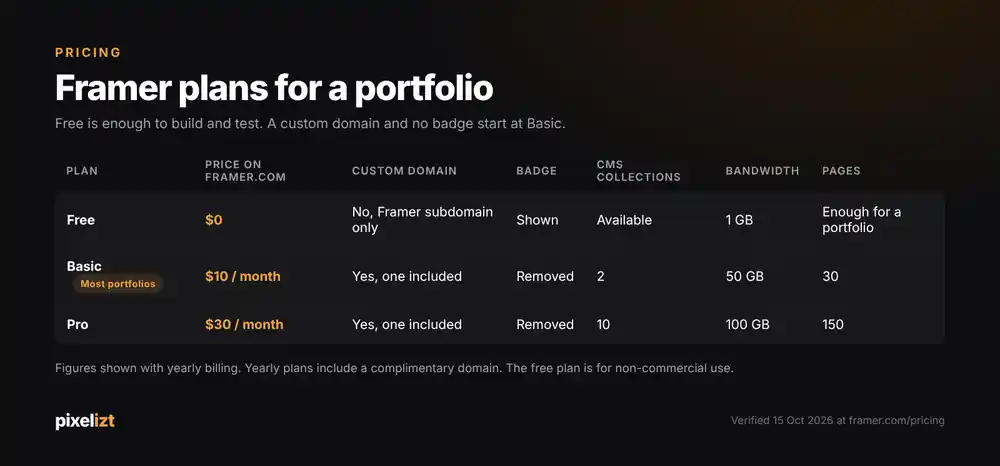
The pricing page shows these figures with yearly billing selected, so check monthly pricing before you buy. A complimentary domain is included on yearly plans. The free plan is marked for non-commercial use.
For most portfolios, Basic is the answer. Move to Pro when you need staging, more collections, or redirects after a restructure.
Pricing last verified October 15, 2026 at framer.com/pricing. Plans change; that page is the source of truth.
Framer vs alternatives for portfolios
| Framer | Webflow | Squarespace | Wix | |
|---|---|---|---|---|
| Free plan | Yes, subdomain and badge | Yes, subdomain and badge | 14-day trial only | Yes, subdomain and Wix branding |
| Custom domain on free | No | No | No | No |
| Learning curve | Low if you know Figma | Steep | Low | Low |
| Design freedom | High | Highest | Template-bound | Medium |
| Built-in CMS | Yes | Yes, more complex | Basic | Basic |
| Best for | Creatives who want a distinctive site fast | Large or complex sites | Polished template, no setup | Beginners who want everything in one place |
If you want a portfolio website builder that ships something distinctive in a weekend, Framer wins. Webflow wins when the site is big or complex. Squarespace and Wix win when you want to pick a template, upload photos, and never think about it again.
Competitor details checked on each vendor's pricing page, October 15, 2026.
FAQ
Is Framer good for portfolio websites?
Yes. Framer is one of the best tools for a designer or creative portfolio because the canvas works like Figma, the CMS handles case studies, and hosting, SSL, and SEO basics are built in. It is a weaker fit for very large sites or e-commerce, but for a Framer portfolio website with three to twenty projects it is hard to beat.
Is Framer free to use for a portfolio?
Yes, with limits. The free plan lets you build and publish a portfolio on a Framer subdomain with a "Made in Framer" badge and 1 GB of bandwidth, for non-commercial use. To use your own domain and remove the badge, you need a paid site plan, listed at $10 a month on framer.com as of October 2026.
Can I use a custom domain on the Framer free plan?
No. Connecting a domain you own requires a paid site plan. Once you upgrade and connect the domain in Site Settings under Hosting and Domains, republish the site. That republish is also what removes the "Made in Framer" badge. Yearly plans include a complimentary domain.
Do I need to know how to code to use Framer?
No. Learning how to build a portfolio website with Framer means learning the canvas, the CMS, and the settings panels, not code. Code components exist for people who want them, but a portfolio does not need them. If you know Auto Layout in Figma, you already understand Framer's layout model.
How long does it take to build a portfolio website with Framer?
With a template and your content ready, an afternoon. From a blank canvas, plan a weekend, most of it on the case study page and the phone breakpoint. The slowest part is never Framer. It is writing the case studies and choosing images, so do that before you open the editor.
How many projects should a portfolio website have?
Three to six strong case studies on the home page, each with a problem, your role, and an outcome. If you have more, put them on the Work page behind a filter. A client judges you by your weakest visible project, so curation does more for you than volume.
Is Framer better than Webflow for a portfolio?
For most portfolios, yes. Framer is faster to learn, closer to Figma, and its animation tools are simpler. Webflow gives you more control over structure and a more powerful CMS, which matters for large or complex sites. If your site is a portfolio with a blog, Framer gets you there with less effort.
Your portfolio can be live this week
You now know how to build a portfolio website with Framer, from account to custom domain. The order matters: content first, CMS before design, phone breakpoint before publish, domain the same day.
Open Framer, create the Projects collection, and add your three best projects. Everything else follows.
If you would rather have it designed and built for you, that is what we do. See how Pixelizt builds Framer websites or get a quote.